> For the complete documentation index, see [llms.txt](https://docs.mixeffect.app/llms.txt). Markdown versions of documentation pages are available by appending `.md` to page URLs; this page is available as [Markdown](https://docs.mixeffect.app/explore/bus-mapping.md).
# Bus Mapping
Bus Mapping lets you link one or more follower mix effects buses or auxiliary outputs to a primary M/E so they stay in sync during cuts and transitions. When the primary M/E switches sources, the follower bus follows automatically.
Using Bus Mapping, you can optionally substitute specific sources on a follower. This allows the follower to behave exactly like the primary for switching and transitions, while outputting different sources where needed.
Bus Mapping is supported only on certain ATEM switchers, such as:
* ATEM 1 M/E Constellation HD and 4K
* ATEM 2 M/E Constellation HD and 4K
* ATEM 4 M/E Constellation HD, 4K, and 4K Plus
* ATEM Mini Extreme ISO G2
You can find Bus Mapping in one of two locations:
1. Switcher Settings > Display > Bus Mapping
2. Bus Mapping section
If you do not see the Bus Mapping section in the left-hand sidebar of MixEffect when connected to your switcher, reset your sidebar layout. Instructions on how to [reset your layout can be found here](/configure/switcher-connections.md).
## Bus Mapping User Interface
If your switched has multiple mix effect buses, you'll see a tabbed interface with which to choose which mix effect bus is the lead or primary M/E.
### Adding a follower
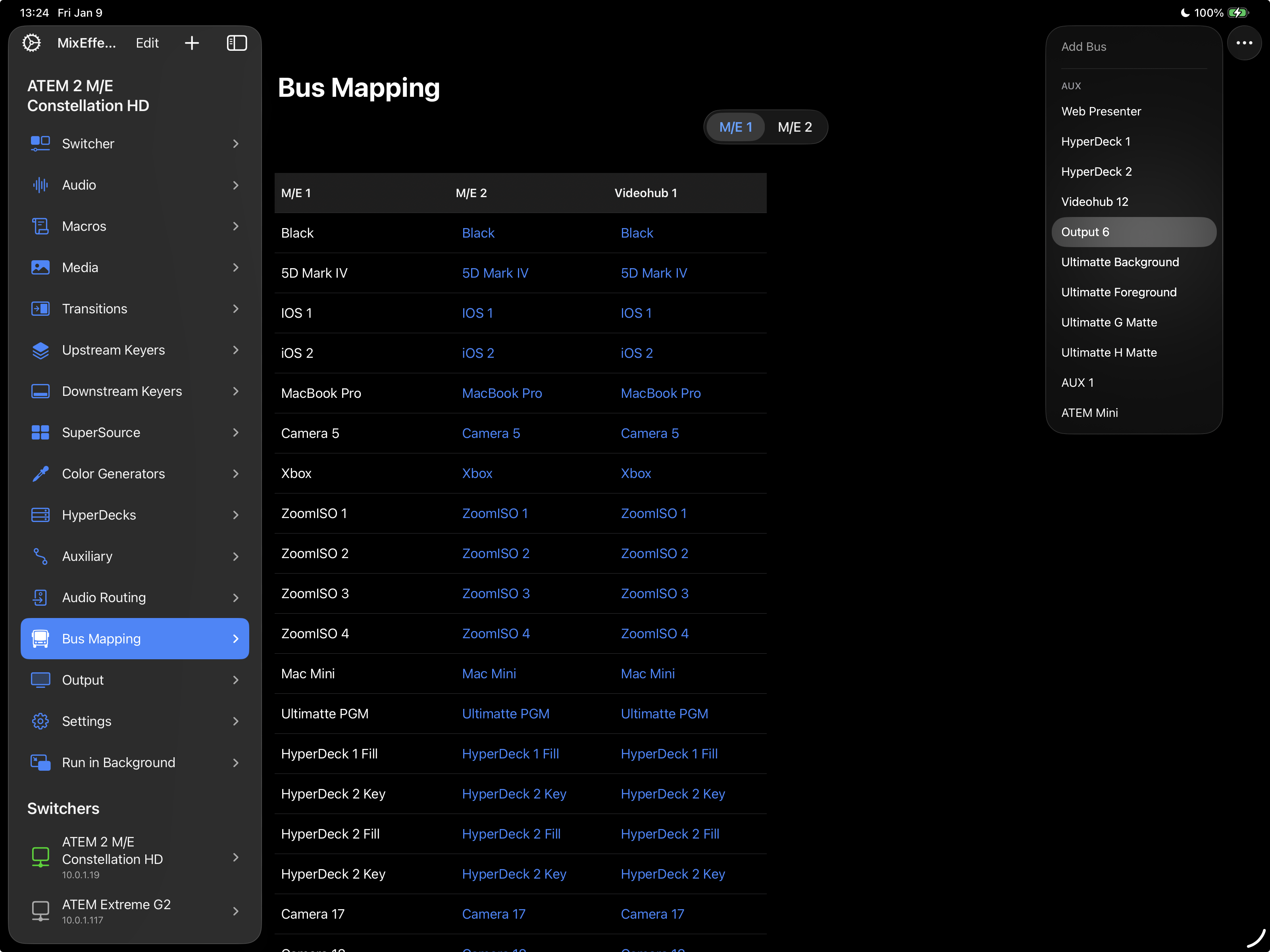
To add a follower bus, follow these steps:
1. Tap on the plus icon.
2. Choose a mix effect bus (if available) or an auxiliary bus to act as a follower for your primary M/E.
Adding a follower for M/E 1.
### Removing a follower
To remove a follower bus, follow these steps:
1. Tap on the minus icon.
2. Choose the follower bus that you want to remove.
### Substituting sources
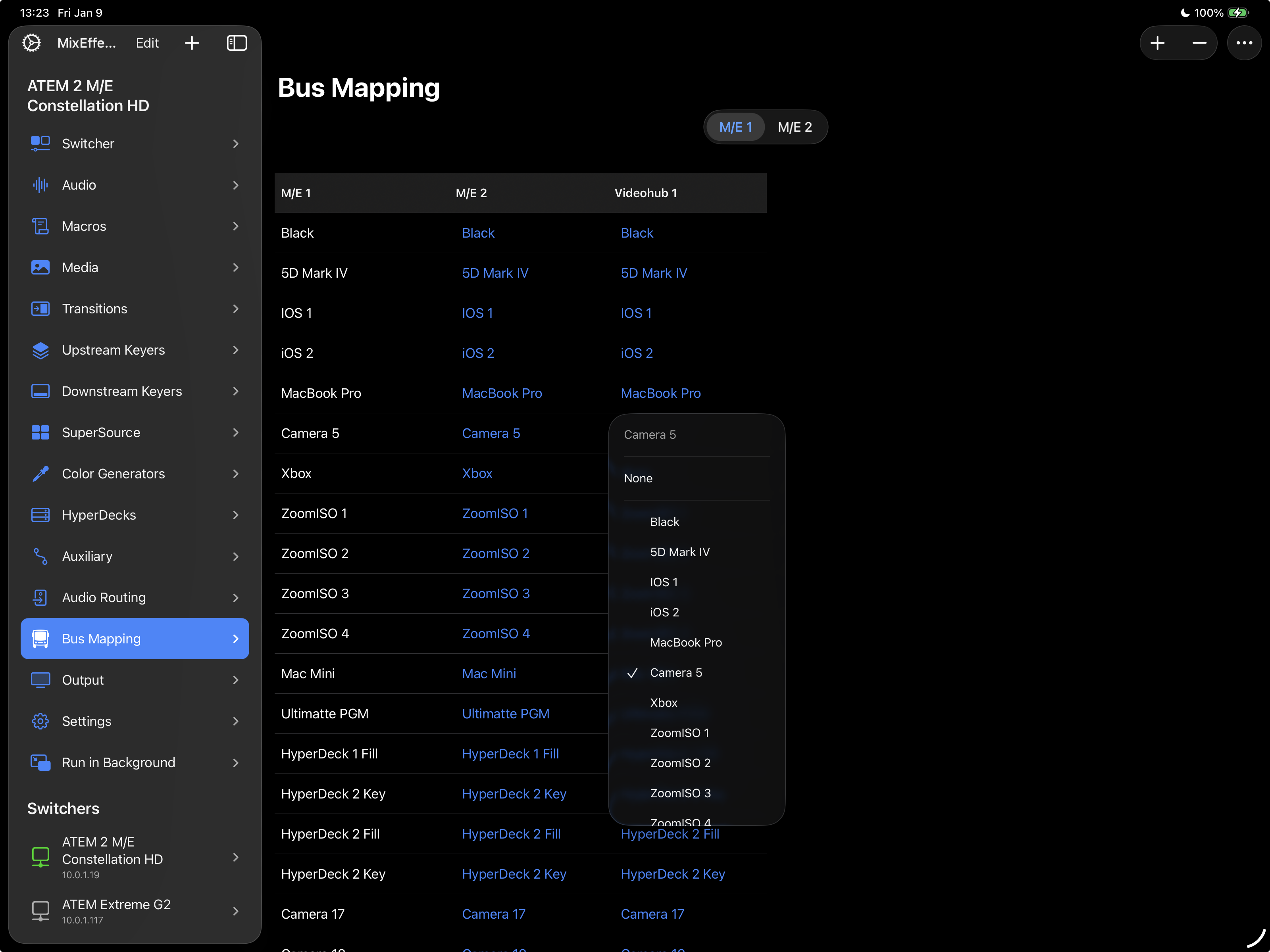
On the left-hand sidebar, the list of sources from the lead M/E will be shown alongside the sources of a follower. Tap on a follower source and choose the substitution source. For instance:
1. When Camera 5 is chosen on the lead M/E, have Camera 6 be substituted on the follower M/E
2. When Camera 1 is chosen on the lead M/E, have Camera 2 be subsituted on Auxiliary Output 1
Substituting a source for Camera 5 on the auxiliary output Videohub 1.
## Options Menu
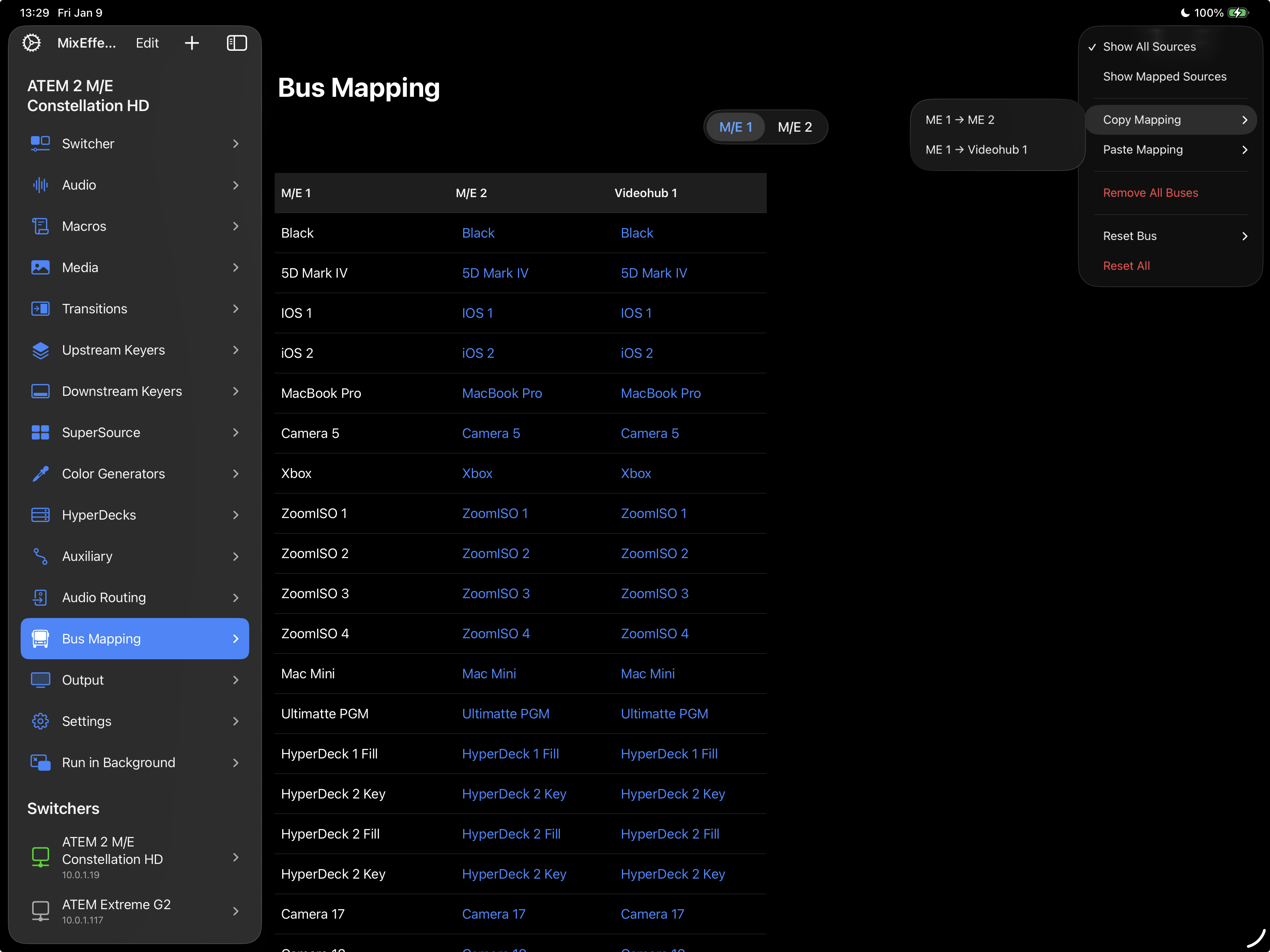
Tap on the button in the upper-right corner of the Bus Mapping section to reveal additional commands when working with bus mapping:
* **Show All Sources**: Displays all sources and substitutions for a follower, even if they haven't changed from the lead mix effects bus.
* **Show Mapped Sources**: Displays only those sources that have active substitutions.
* **Copy Mapping**: Copies the source substitutions for a selected follower.
* **Paste Mapping**: Pastes copied settings from a follower to another follower.
* **Remove All Buses**: Disables all buses for the selected mix effects bus.
* **Reset Bus**: Resets the substitutions for a selected follower back to its defaults.
* **Reset All**: Resets all substitutions for enabled followers.